
About this JPG to SVG tool
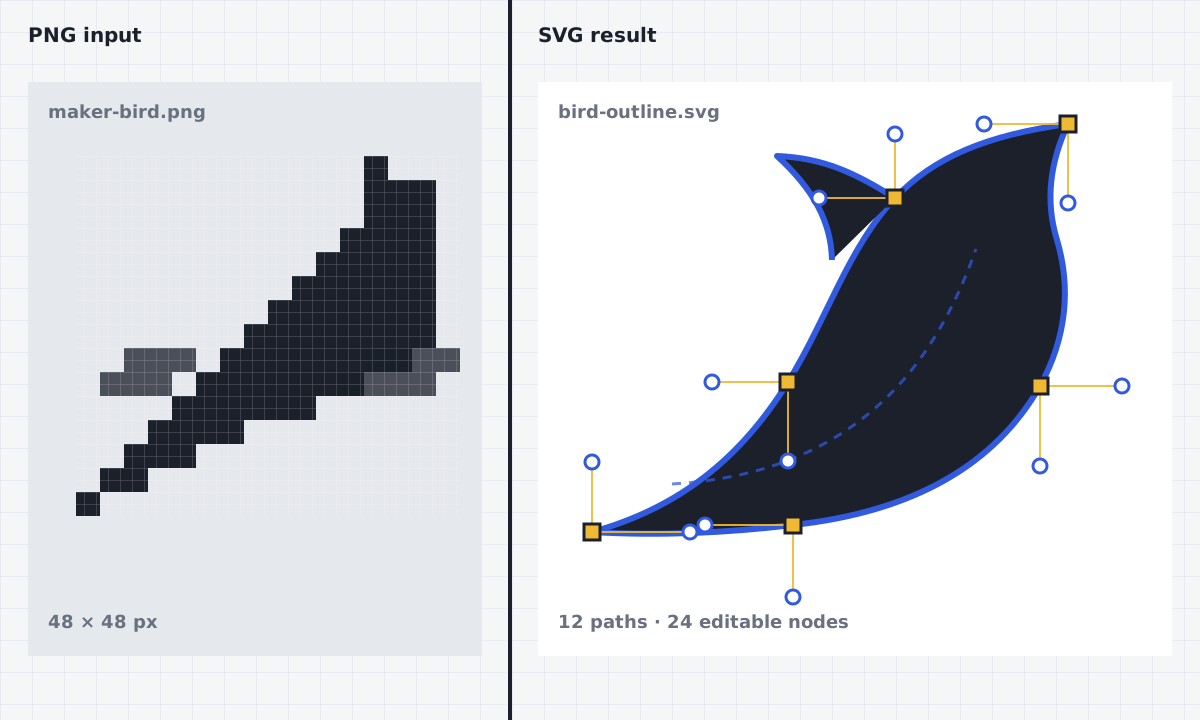
This JPG to SVG converter turns a JPG or JPEG bitmap into editable SVG paths directly in your browser. It uses the open-source VTracer engine (https://github.com/visioncortex/vtracer), compiled to WebAssembly for the existing SVGPix tracing workflow. Your browser decodes the image and runs the trace locally, so the source picture does not need to be uploaded to an SVGPix server. The result is vector geometry made from shapes and curves, not a JPG hidden inside an SVG wrapper.
JPG is useful for photographs and other compressed pixel images, but it does not contain the original outlines, layers, or control points that may have been used to create the artwork. Converting JPG to SVG therefore means tracing the visible pixels and estimating useful boundaries. The default Poster preset favors logos, icons, flat illustrations, labels, and artwork with a limited palette. It reduces visual noise into broader regions that are easier to inspect and edit than a highly detailed photographic trace.
Source quality still determines how useful the conversion can be. A clean image with strong contrast, distinct edges, and little compression damage usually produces fewer stray shapes. Soft shadows, textured backgrounds, tiny lettering, and repeated JPEG artifacts can create extra paths. For a photograph whose color detail matters, try the Photo preset or use the dedicated Photo to Vector page. In every case, zoom into the preview and judge the SVG at the size where it will actually be used.
How it works
- 01
Upload a JPG or JPEG
Choose a JPEG image from your device; PNG and WebP are also accepted when you need the same tracing workflow for another raster source. For clearer paths, start with the largest clean copy available, crop unrelated background, and avoid repeatedly re-saving a compressed JPG before conversion.
- 02
Adjust the preset and preview
The Poster preset is the default because it suits logos and illustrations with distinct color regions. Compare Silhouette for one-color artwork or Photo for a picture with softer color changes. Run the trace, then zoom through both the source and vector preview instead of judging only the thumbnail.
- 03
Inspect and edit the paths
Open the SVG editor to select, move, or remove traced shapes. Look for tiny islands around compressed edges, unintended holes, overlapping regions, and corners that should be cleaner. A short manual cleanup often makes the result easier to recolor and more dependable in later design work.
- 04
Download the SVG
Export the result as SVG to keep its scalable paths. You can then open it in compatible design software for Cricut craft layouts, print graphics, or laser artwork preparation. The download is editable geometry, but it is not machine-ready code; confirm dimensions and production settings in the destination application.
Practical use cases
Logos, badges, and simple icons
Convert a clean JPG reference into shapes that can be selected, recolored, and resized. The Poster preset is a practical starting point for bold marks with a plain background. Small text and fine trademark details may need manual reconstruction, so compare the trace carefully with an authorized source before using it.
Flat illustrations and clip art
Artwork with firm outlines and a limited palette often translates into manageable color regions. The SVG can become a starting layer for a poster, sticker, label, or web graphic. Gradients and texture will usually be approximated as multiple shapes rather than preserved as the original painting process.
Craft and Cricut preparation
A traced SVG can be imported into compatible craft design software for arranging vinyl, paper, or stencil projects. Simplify small regions and inspect enclosed spaces before cutting. SVGPix creates paths for the design stage; material choice, blade settings, minimum feature size, and safe operation remain part of your normal craft workflow.
Print-oriented graphics
Use the conversion to rebuild a low-resolution reference as scalable graphic regions for a draft, sign, or print layout. Vector paths stay crisp when enlarged, but tracing cannot restore detail that compression removed. Confirm colors, page size, bleed, and the printer requirements in your layout application before production.
Photographs that need a graphic treatment
A photo can be converted into layered shapes for a stylized portrait or poster treatment, but it will produce more paths than a logo. Select the Photo preset when tonal regions matter, or move to Photo to Vector for guidance focused on photographic sources. Expect to simplify rather than recover a perfectly faithful original.
Private, browser-local JPG tracing
The selected file is read by the browser and processed by the local VTracer WebAssembly workflow. No source upload is required to convert JPG to SVG. This reduces unnecessary transfer of private drafts and client artwork. Keep your own original file, use a device you trust, and close the tab when you have finished with sensitive material.
True SVG paths, not an embedded bitmap
Some files with an .svg extension contain only a linked or base64-encoded raster image. This converter instead traces visible regions into SVG path geometry. Those shapes can be selected, recolored, rearranged, and scaled without pixel blocks. The paths describe the trace result; they do not recreate source layers, fonts, or hidden vector data.
How JPG and SVG differ
JPG stores a rectangular grid of compressed pixels and is well suited to photographs. SVG stores structured shapes, curves, fills, and document dimensions. JPEG compression discards information and can leave block or ringing artifacts near high-contrast edges. A tracer may follow those artifacts, which is why a clean source and careful preview matter more than merely changing the file extension.
Defaults for logos and illustrations
The JPG to SVG page opens with the Poster trace preset. It is biased toward broader, flatter regions instead of preserving every tonal variation. That makes it a sensible default for logos, icons, diagrams, and illustrations. Switch to Silhouette for strongly separated one-color artwork or Photo when a more detailed image needs multiple color regions.
Using the SVG in print, craft, or laser software
SVG is an exchange format, and importing applications differ in their support for page boxes, transforms, fills, and units. Check the physical size, path closure, duplicate contours, minimum features, and intended operations after import. For laser work, the SVG is artwork rather than machine instructions: set kerf, order, power, speed, material, and safety controls in the software and process you normally use.
JPG to SVG FAQ
- Is this JPG to SVG converter free?
- Yes. You can run the local trace, inspect the result, and download the SVG without paying for this browser tool. The conversion uses your device for processing rather than sending the image to a hosted tracing queue.
- Does the downloaded SVG have a watermark?
- No. SVGPix does not add a visible watermark to the exported SVG. The file contains the paths generated from your source and any edits you make in the browser.
- Can I use a converted SVG commercially?
- The tool does not add a restriction to your exported file, but conversion does not grant rights to the source artwork. Use images you created, licensed, or otherwise have permission to reproduce, and check any applicable trademark, copyright, font, client, or marketplace terms before commercial use.
- Does JPG to SVG work better for logos or photos?
- Logos, icons, and flat illustrations with clear edges usually create simpler, easier-to-edit paths. Photos contain many tones and textures, so they often create more shapes and need the Photo preset plus cleanup. Use Photo to Vector when the source is primarily photographic and you want guidance tailored to that case.
- Is JPEG the same as JPG for this converter?
- Yes. JPG and JPEG commonly refer to the same image format; the shorter extension came from older filename limits. Files with .jpg and .jpeg extensions use the JPEG media type and are accepted by this page.
- Does my JPG leave my device?
- No source upload is required. The browser reads the file and runs VTracer locally through WebAssembly. Your original image stays in the browser workflow on your device while you trace, preview, edit, and export it.
- Why are there extra shapes around JPG edges?
- JPEG compression can introduce faint blocks, halos, and color changes around sharp boundaries. The tracer sees those pixels as image information. Start with a cleaner or less compressed source, crop the background, choose a simpler preset, and remove unimportant islands in the editor.